 Keepit
How to see your clipboard history on a Mac
macOS keeps exactly one thing on the clipboard. Copy something else and the previous item is gone — there is no built-in clipboard history to open, scroll or search. This page covers what macOS can show you, and how to get a real clipboard history with a free app.
What macOS can do on its own
See the current item. In Finder, choose Edit → Show Clipboard. A small window shows whatever is on the clipboard right now — one item, read-only. It is useful for checking what you are about to paste, nothing more.
Paste the same thing on another Apple device. Universal Clipboard copies the clipboard between a Mac, an iPhone and an iPad signed in to the same Apple ID. Still one item.
Paste without formatting. Most apps have Edit → Paste and Match Style (⌥⇧⌘V), which pastes the clipboard as plain text. That is the closest macOS gets to a clipboard feature.
Nothing in macOS stores a history, so once you have copied over something, the only way back is to find the original and copy it again.
Get a clipboard history with Keepit
Keepit is a free, open-source clipboard manager for Mac. Once it is running in the menu bar, everything you copy — text, images, files — is kept in a history you can open from any app.
- Download Keepit (or
brew install --cask andrey-insarov/keepit/keepit), move it to Applications and open it. - Grant the Accessibility permission when asked. Keepit needs it to paste for you and to open the menu at your text cursor; it does not read other apps.
- Press ⌥M anywhere. The history menu opens next to the cursor with the most recent items first.
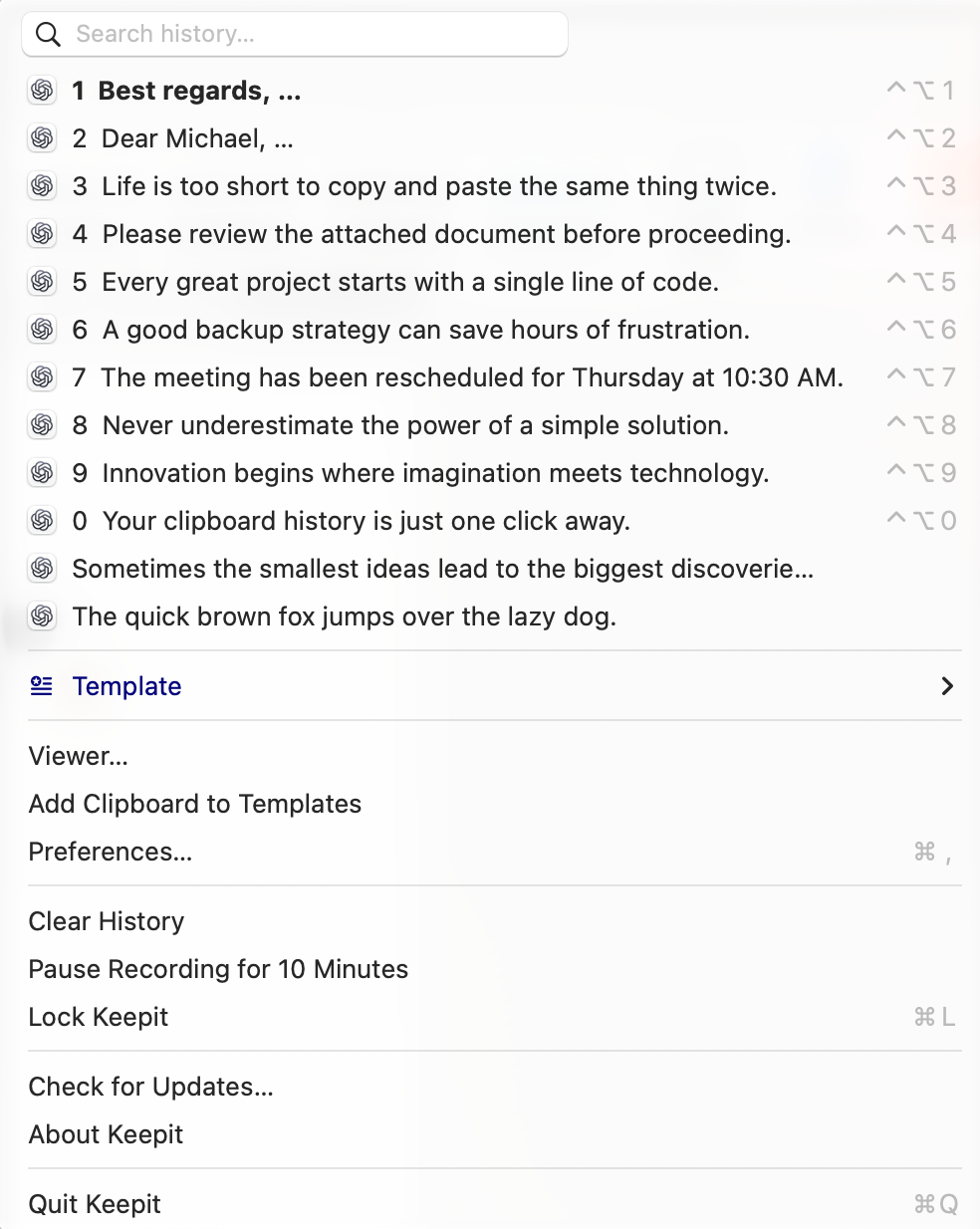
From the menu:
- Type to search the history; the list filters as you type.
- Press a number (1–0) or click an item: it is pasted where you were typing, and the menu closes.
- Hover over an item to see a preview of long text or an image.
- Press ⌃⌥1 … ⌃⌥0 without opening the menu to paste items 1–10 straight away, or ⌥⇧V to paste the item before the current one.
The history keeps the last 1 000 text and file items and the last 30 images by default; both limits are yours to change in Preferences → History. Duplicates are merged, and copies from password managers are never recorded.
Clipboard history and privacy
A clipboard history is a record of everything you copy, so where it is stored matters. Keepit keeps it in one folder on your Mac and nowhere else — no account, no cloud, no analytics. Turn on a password and the history is stored AES-256-GCM encrypted and unlocked with Touch ID. The security page has the details.
Related
- The user guide — everything Keepit can do, with screenshots.
- How to paste as plain text on a Mac
- How to clear the clipboard on a Mac