 Keepit
 security
A clipboard manager sees everything you copy, so it has to be clear about what it keeps, where, and who can get at it. This page is the complete picture for Keepit. The code is open (github.com/andrey-insarov/Keepit), so every claim here can be checked against it.
In one paragraph
Keepit stores your clipboard history and templates in one folder on your Mac and nowhere else — plus, if you switch it on, encrypted copies in a folder you choose (iCloud Drive, Dropbox, a disk); the provider behind that folder sees the ciphertext, the file size and a short unencrypted header (listed below), nothing of the content. There is no account, no Keepit cloud, no analytics, and the app makes exactly one kind of network request — the daily update check against GitHub — which you can switch off. The backup folder is an option, off until you turn it on; the update check is on in the direct-download edition and can be turned off; the password is an option too. None of them is required for the design to hold — with no backup folder Keepit itself never writes outside the Mac, and the rest of this page stays true — but they are not equivalent: without a password the history and templates are plain files in your own Library folder, readable by anything that runs as you, and there is nothing to lock. Turning an option on adds exactly what it says and no more. Clipboard data that the copying app marks as concealed is not recorded, and copies from known password managers are excluded by app — a best-effort heuristic, explained below. If you set a password, everything on disk is AES-256-GCM encrypted with a key derived from that password; the key exists only in memory, is wiped when Keepit locks, and can optionally be released by Touch ID from the Secure Enclave. A 24-word recovery phrase is the only way back in if you forget the password — Keepit itself cannot reset it.
What is stored, and where
Everything lives in ~/Library/Application Support/Keepit/ (App Store edition: the app's container
under ~/Library/Containers/com.it.keep/):
| File | Contents | Encrypted with a password? |
|---|---|---|
history.json |
The clipboard history: text, RTF, HTML, PNG images, file lists, with date and source app | Yes |
templates.json |
The template tree, including per-template hot keys | Yes |
settings.json |
Settings: hot keys, limits, ignore list — no clipboard data | No |
vault.json |
Encryption metadata: KDF name and round count, PBKDF2 salt, a sealed verifier, the wrapped recovery material | — |
restore-journal/, protection-journal/ |
Only during a restore or a password change: the previous bytes of the files above, so an interrupted commit is undone at the next launch | As the originals |
The data folder is created with mode 0700 and every file Keepit creates (the data files, vault.json,
the journals, the copies it writes) with 0600, from the first byte — the temporary file of an atomic
write is created 0600 before anything lands in it. A folder or file that already existed keeps the
mode it had, and a rename (a .corrupt-… copy set aside) moves the file with its mode: Keepit does
not change permissions you set. The history is written when it changes and read on launch. With
Save history on quit, restore on start off, history.json is removed the moment the setting is turned off, and again at every lock
and at quit; history then lives only in memory until Keepit quits. If the file cannot be removed
(permissions, a locked flag, a file Keepit could not read and therefore keeps), Keepit says so rather
than assuming it is gone. Without a password the JSON is plain
text on disk, protected only by your macOS account and FileVault. Settings → Advanced → Open
Data Folder shows the folder.
Keepit also writes to the macOS keychain — only the Touch ID entry described below — and registers itself as a login item if you let it start at login.
What is not recorded
Three layers, in decreasing order of certainty. It matters which one you are relying on.
- Marked by the source — reliable. Anything the copying app marks as concealed or transient
(
org.nspasteboard.ConcealedType,org.nspasteboard.TransientType, 1Password's own type) is skipped on the strength of the mark alone; Keepit does not need to know which app wrote it. 1Password, Bitwarden, Apple Passwords, Keychain Access and many terminals set these marks. (The check can be turned off on Settings → History; leave it on.) - Known by app — best effort. Copies from a password manager that sets no mark are excluded by its bundle identifier: KeePassXC, MacPass, Strongbox, KeeWeb, LastPass, Dashlane, Enpass, Keeper, NordPass, RoboForm (and, as a second line, the apps in layer 1) are built in and always active; add your own apps on Settings → History. The limit here is macOS: the pasteboard does not record which app wrote it, so Keepit works from which apps were in front since it last looked (every 300 ms by default). If any of them is on the list, the change is skipped — including when you copy and switch to another app before Keepit notices. This errs towards skipping. It cannot cover a copy made by a background process or a script, and it cannot tell a password from any other text in an app that is not on the list.
- By your choice. Anything copied while recording is paused (Pause Recording for 10 Minutes, ⌥P), apps on your ignore list, and formats other than plain text, RTF, HTML, PNG and file lists.
Keepit does not inspect text for things that look like passwords or one-time codes. If an app that is not on the list puts a secret on the clipboard without marking it, it is recorded like anything else: use the pause or the ignore list for such apps, and delete the item from the history.
Encryption
Turn on Require password at launch and the history and templates files are encrypted:
- Key derivation: PBKDF2-HMAC-SHA256 with 200 000 rounds and a random 16-byte salt, producing a
256-bit key. The salt, the KDF name and the round count are stored in
vault.json(so the parameters can change in a later version without breaking existing vaults); nothing else derived from the password is written except a small GCM-sealed verifier that lets Keepit tell a wrong password from corrupt data. - Cipher: AES-256-GCM (CryptoKit), a fresh random nonce per file write, authenticated — a modified file fails to open rather than decrypting to garbage.
- Key in memory: the 32 key bytes live in a dedicated buffer that is overwritten with
memset_swhen Keepit locks or quits; Keepit asks the kernel to keep that page out of swap (mlock) and logs if the request is refused. A CryptoKit key object is built only for the duration of one call and discarded. This covers Keepit's own key buffer. The decrypted history while Keepit is unlocked, and the copies Swift and CryptoKit make internally, are ordinary process memory — see Limitations below. - Locking: Lock Keepit (⌥L), quitting, and — if you set a delay in Settings → Security
(off by default) — the Mac having been locked or asleep for that long wipe Keepit's own key buffer
and drop the live history and template models (an absence that was already under way when Keepit
started counts from the start, where macOS reports the screen and session state — it normally
does; otherwise the next lock or sleep starts the count. A Mac waking into another user's
session is not "back".) A template's fill-in dialog or a
keepit://confirmation that is open at that moment is closed, and whatever it would have pasted or added is dropped; so are the history menu and the preview beside it, the Viewer (its tree, views and undo stack), the paste queue's copies and the recovery-phrase sheet. After that Keepit holds nothing it could decrypt until you unlock again (the copies Swift and CryptoKit may have made are covered under Limitations). With the default Never, locking the Mac does not lock Keepit: the key and the decrypted data stay in the process for as long as you are away, protected by the Mac's own lock and nothing else. - Turning protection on or off, changing the password: one transaction. The new
vault.jsonand the data files sealed with the new key (or written plain, when protection goes off) are prepared in memory and written through the same kind of journal a restore uses (protection-journal/, with the previous bytes ofvault.json,history.json,templates.jsonandsettings.json): all of them change or none, a crash in between is undone at the next launch before anything is read, and the key in memory changes only once the files have. The recovery phrase is part of the firstvault.jsonever written; Settings → Security → Show… shows it again after Touch ID or the password. These operations wait while a data file is held as unreadable — re-encrypting around it would destroy the one way left to read it. A lock during any of their dialogs voids the answer. - Secure Event Input: while a password field has the focus in a key window of the active app, and while the recovery-phrase box is open, Keepit asks macOS for Secure Event Input — keystrokes go to Keepit only, not to other processes' event taps. It ends with the focus, so a prompt left behind another app does not hold the whole system in secure input.
- Set-aside copies: a
.corrupt-…copy left by Start Fresh or a Replace follows the vault — sealed when protection is turned on, re-sealed on a password change, plain again when protection is turned off, removed by Reset. A plain copy set aside under a vault is left as it is. - Password strength: the password dialog shows an entropy estimate and explains it; Keepit does not enforce a minimum, because the recovery phrase and Touch ID are the usual way in.
-
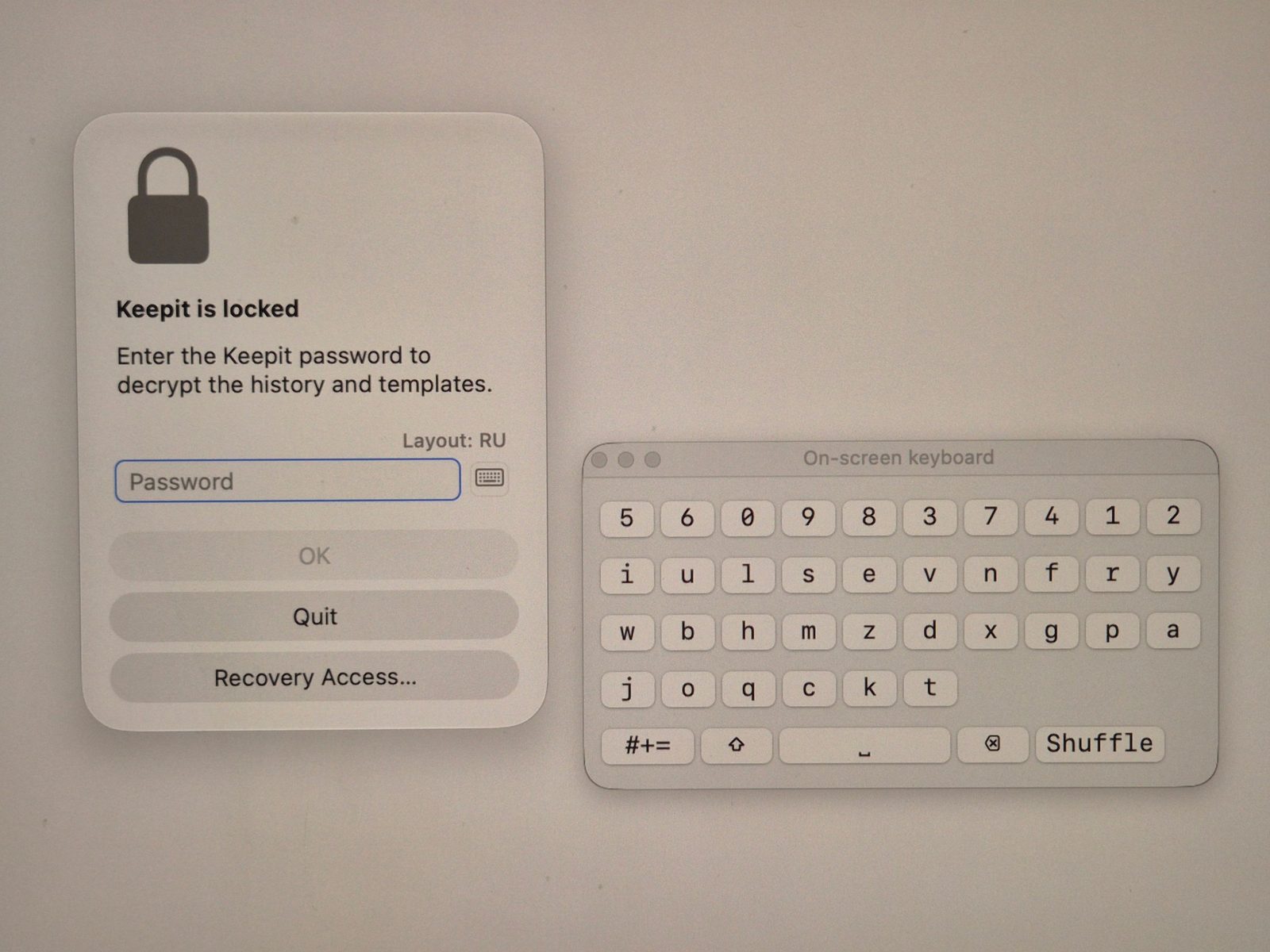
On-screen keyboard: the keyboard button next to the password field opens a small panel for entering the password with the mouse. What it does, in order of certainty: each click goes straight into the locked buffer without generating a key event, so anything that captures keyboard events sees nothing; the keys are shuffled each time the panel opens (and on Shuffle), so mouse positions alone do not give the password away; and the panel asks macOS to leave it out of screen capture (
NSWindow.sharingType = .none). On some configurations that excludes the panel from screenshots and screen recording; Apple has deprecated that value and says not to rely on it, so protection from screenshots and screen recording is not guaranteed — count on the first two. A capture tool that sees the panel, together with mouse positions, defeats the shuffle; so does a person looking at the screen. -
Wrong attempts: after several wrong passwords Keepit backs off with increasing delays, and after too many it quits (at launch) or stays locked.
Changing the password re-wraps the recovery material; the data files are re-encrypted with the new key.
Touch ID
With Unlock with Touch ID on, Keepit stores a copy of the data key in the keychain under an access
control of kSecAttrAccessibleWhenUnlockedThisDeviceOnly + biometryCurrentSet. That means:
- the entry is protected by the Secure Enclave and released only after a successful fingerprint;
- it never leaves this Mac (not backed up, not synced);
- it is invalidated automatically if the set of enrolled fingerprints changes.
The password keeps working as a fallback and is still required to change the password itself unless you allow Touch ID for that too. Turning Touch ID off deletes the keychain entry.
Recovery phrase
When you set a password Keepit generates 32 bytes of entropy and shows them once as a 24-word BIP-39-style phrase (2048-word English list, 8-bit checksum to catch typos). A key derived from that entropy (HKDF) wraps the data key, and the entropy is in turn wrapped by the data key, so:
- the phrase can unlock the data and let you set a new password if you forget the old one;
- changing the password does not change the phrase;
- Recovery phrase → Create New… (Settings → Security) issues new entropy and invalidates the old phrase.
The phrase itself is never written to disk. Print it, or keep it in a password manager. Without the password, Touch ID on the same Mac, or the phrase, the data is unrecoverable by design — there is no server-side reset and Keepit's authors cannot help.
Backups
A backup is one .keepit file holding the history, the templates and (optionally) the preferences,
compressed with LZFSE and sealed with AES-256-GCM. Two ways to make one, same file format:
- Automatic (Settings → Backup, needs password protection): Keepit writes a new
complete copy into the folder you chose about five minutes after the last change (at the latest
once a day), reads it back and checks it before deleting the oldest of its own copies beyond
Keep last. "Its own" is proven, not looked up: Keepit keeps a registry of the copies it wrote
(
backup.jsonin the data folder), and a copy is deleted only if its name is exactly what Keepit would have written for that entry, if it is a regular file (not a link or a folder) of the recorded size, and if its SHA-256 matches the entry — and only copies that pass that check count towards Keep last. Anything else under a name the registry mentions is left where it is. The file key is derived from your vault's data key with HKDF-SHA256 under a fixed label — a separate key on purpose: it opens backups, not the vault, so even someone who extracted it from a running process could not use it on the data folder. Deriving it requires the data key, which is what the Keepit password or the recovery phrase unlocks — on any Mac. Each copy is sealed with the key material in force when it was written: after a password change or a new phrase, earlier copies still need the earlier password or phrase, and a copy made before a phrase existed cannot be opened with one. - Save to Archive… (any time, no password protection needed): the file key comes from a password you choose for that file, PBKDF2-HMAC-SHA256 with 200 000 rounds and a random salt.
What a file looks like inside. A magic string and a format version, then a small JSON header,
then the ciphertext. The header is authenticated as GCM additional data — it cannot be altered
without the file failing to open — but it is not encrypted, because the reader needs it to know how
to derive the key. Field by field: mode (auto or manual), kdf and rounds, salt, created,
app (the Keepit version), minReader, sourceID (a random installation identifier, not tied to
hardware), backupID (random, per file), recovery (the vault's recovery block: the data key
wrapped under the phrase-derived key, plus the phrase's entropy wrapped under the data key — both
useless without the phrase or the key), and label — your Mac's name, present only if you switched
it on. That, and the file's size, is what a storage provider or anyone who finds the file can learn:
that it is a Keepit backup, when it was made, from which installation, and roughly how much data it
holds. Not what is in it, not the password. The complete specification is in
docs/FORMAT.md in the
repository, with reference files produced by an independent implementation; backups written by
Keepit 2.x (format 1) still open.
Restore verifies the GCM tag before anything else, decompresses with a hard size limit, and then checks every item against the same limits the app applies when recording — a backup is untrusted input even when it is your own. Replace first writes a verified copy of the current data; the swap itself is written to disk as one transaction with a journal, so a crash in the middle is put right at the next launch. Trust settings (Touch ID, URL automation and its trusted apps, the backup folder) are never taken from a backup.
Where the copies go is up to you, and so is who else can reach that folder. The ciphertext is only as safe as the password behind it: the same advice as for the vault applies, and for Save to Archive… files, which carry their own password, a short one is the weak point. Deleting a copy from the folder removes it there; what cannot be taken back is anything the provider keeps as an earlier version or in its trash, or a copy that was downloaded elsewhere — treat a file that has left the folder as permanent, and a weak password on it as the real exposure. On the App Store edition, access to the folder is a security-scoped bookmark granted when you choose it; Keepit never scans iCloud Drive or anything else on its own.
Network volumes. Keepit writes each copy to a temporary name, flushes it, reads it back and compares a hash before renaming it into place, and it never deletes an old copy before a new one has passed that check. How atomic and durable those steps are on a NAS depends on the file system and the protocol (SMB, NFS) and on the server's own caching — Keepit cannot see through them. A local folder or a folder synced by iCloud Drive or Dropbox is the recommended target; on a NAS, verify once that a copy opens with Restore… from another machine before relying on it.
Permissions Keepit asks for
| Permission | Why | What happens without it |
|---|---|---|
| Accessibility | To send ⌘V to the app you were working in, and to find the text cursor so the menu opens there | Items are copied to the clipboard; you press ⌘V yourself; the menu opens at the pointer |
| Touch ID / keychain | Only if you enable Touch ID unlock | Password only |
| Login item | Launch at login (on by default, switchable on General) | Start Keepit by hand |
Keepit does not ask for Full Disk Access, Screen Recording, Input Monitoring, Contacts, Calendars,
Location or the camera, and does not use any of them. The Accessibility permission is powerful — it
is the same one window managers and automation tools need — which is why the app is signed and
notarized and the source is public. What Keepit does with it is narrow: one ⌘V (and, for a template
with {cursor}, a few left arrows) addressed to the process of the app you were in, never to
"whatever is in front". Immediately before each of those key events Keepit checks that it is still
unlocked (and was not locked and unlocked in between), that the target app is still running and is
the one in front, that nothing else has written the clipboard since, and that no modifier key is
held; if any of that fails, nothing is typed — the item stays on the clipboard for a manual ⌘V.
Without a known target app (a keepit:// command with no app in front, the Viewer's own copy) no key
is sent at all.
Clipboard access as macOS sees it. Keepit reads the clipboard by polling (macOS sends no notification when it changes), so from macOS 15.4 on, System Settings → Privacy & Security lists Keepit among the apps that read the pasteboard, and the system log records those reads. That is the history being recorded — it is what a clipboard manager does — not a sign of anything else going on.
Automation (keepit:// URLs)
The keepit:// URL scheme (paste item N, paste a template, add text, pause) is off by default
and switched on in Settings → Advanced → Automation. Any process or web page can ask macOS to open
a URL — browsers do confirm the first time for a custom scheme, scripts do not — and add and
paste change the clipboard or type into the front application without a prompt. With the option
off, Keepit ignores such URLs with a beep and logs that it did.
With it on, Keepit checks the sender. macOS delivers the URL as an Apple Event that carries the kernel's audit token of the process behind it; from that token Keepit reads the process's code-signing identity — its signing identifier and Team ID — and checks that the running code is valid against its own signature. Three kinds of sender:
- A third-party application (signed with a Developer ID or by the Mac App Store, so it has a Team ID). A state-changing command runs without asking only if your list of trusted apps holds an entry for it; otherwise a dialog shows the full URL with Allow, Always Allow and Cancel. Always Allow stores the pair (identifier, Team ID) — never the bundle identifier the process claims, and never the sender's own signing requirement. At every later command Keepit builds its own requirement from that pair (Apple's chain, that identifier, that Team ID) and lets the Security framework evaluate it against the live process; Keepit compares no names itself. A program that claims a trusted app's bundle identifier under another signature, or none, is asked. Allowing an app always means allowing whatever that app runs — its extensions, workflows and scripts — which the dialog says. Settings → Advanced → Forget Trusted Apps clears the list.
- Apple's own script hosts — Shortcuts, Automator, Script Editor,
osascript, Terminal,open(Apple-signed, no Team ID). Their signature names an interpreter, not the shortcut or script it is running, so they are asked every time and are never offered Always Allow. - A web browser (anything registered with the system to open
https://links) or a sender that cannot be identified (unsigned, ad-hoc signed, tampered, already gone) is asked every time and cannot be added — a web page could be behind it.
Commands that only open Keepit's own windows (history, templates, viewer, settings) never
ask. A URL with a repeated parameter name is refused. The list of trusted apps is this installation's:
it is not written into backups and a restore never brings one in. Before 3.0.7 the list held bundle
identifiers, which any local program can claim; that list is ignored and emptied at the first launch
of 3.0.7, so each trusted app is asked once more.
System log
Keepit writes to the unified system log (Console.app, log show, sysdiagnose) under the subsystem
com.it.keep, and only about errors and unexpected states: a file that could not be saved or
decoded, a hot key the system refused to register, Touch ID or the login item failing, the updater
not starting. It never logs a clipboard item, a template, a password, a key, the contents of a file,
or whether a particular copy was recorded or skipped. Every value inserted into a message (a file
name, an error, a key combination) is marked private, so Console shows <private> in its place
unless an administrator explicitly turns private data on for the subsystem. There is no log file of
Keepit's own, and nothing is sent anywhere.
Network
The direct-download edition makes one request: once a day (and when you choose Check for Updates…) it fetches the Sparkle appcast from GitHub Releases over HTTPS. Updates are verified with an EdDSA (Ed25519) signature embedded in the app before they are installed; a download that does not match is rejected. The App Store edition is updated by the App Store and makes no requests at all.
That one request can be switched off: Settings → General → Updates → Check for updates
automatically. Off, the updater is not started at all — no scheduled check, no check on demand —
and Check for Updates… leaves the menus; the setting is kept in settings.json
(checkForUpdates). You are then responsible for updating by hand (keep.it.com, GitHub Releases
or Homebrew); security fixes reach you only when you look.
No clipboard content, no usage data and no identifiers are ever sent anywhere. There is no crash reporter and no analytics library in the binary.
If you want certainty rather than a promise. The App Store edition carries no network
entitlement at all — neither com.apple.security.network.client nor .server — and under the
App Sandbox the system refuses every connection to an app without one, whatever the app would try.
Check it yourself:
codesign -d --entitlements - /Applications/Keepit.app
— no network key in the output. For the direct download, which needs the network for its update
check, you can have the same certainty from the outside: switch update checks off and deny Keepit
outgoing connections in an outbound firewall — LuLu
(free, open source), Little Snitch or another; macOS's own firewall covers incoming connections
only. You will see Keepit never ask.
Code signing and verifying a download
Every release is built on GitHub Actions from a tagged commit, signed with the Developer ID of UK
Intis Telecom LTD, notarized by Apple and stapled. The release page carries, for each DMG, a
.dmg.sig (Sparkle EdDSA signature) and a SHA256SUMS file. To verify a download by hand:
shasum -a 256 -c SHA256SUMS --ignore-missing
spctl -a -vv -t install Keepit-2.11.0.dmg      # "accepted, source=Notarized Developer ID"
Homebrew installs the same DMG from the same release.
The signing keys never leave GitHub's release environment: only v* tags can deploy to it, the
build-and-test job that runs on every push and pull request has no access to secrets, and every
third-party action in the workflow is pinned to a commit hash rather than a movable tag.
Uninstalling and data removal
Settings → Advanced → Reset and uninstall → Uninstall… removes the app bundle, the data folder, the
keychain entry, the login item and the Accessibility grant, after asking for the password or Touch
ID and a typed confirmation. Deleting the app by hand leaves the data folder in place — remove
~/Library/Application Support/Keepit/ yourself if you want it gone.
Input limits
Whatever lands on the clipboard is checked before it is stored, so a hostile or runaway copy cannot exhaust memory or disk:
| What | Limit | Where |
|---|---|---|
| Text | 2 MB of UTF-8 (rich text / HTML up to 4× that); larger copies are not recorded | Settings → History |
| Images | 10 MB and 40 megapixels; the pixel count is read from the image header, the image is never decoded first | Settings → History |
| File lists | 1 000 paths | Settings → History |
| History | 1 000 text / 30 image items, 256 MB in total; the oldest go first | Settings → History |
| Templates | 5 000 items, 16 levels deep, names of 200 characters | fixed |
| Paste queue | 500 items per session | fixed |
| Backup files | 512 MB | fixed |
| Password | 256 characters; a prompt answer ({input:}) 10 000 |
fixed |
The same validator stands between every source and the stores — the clipboard, a backup, a file
chosen in the Viewer, a keepit:// command, an edit in the Viewer, and Keepit's own data files when
they are loaded. Besides the sizes above it checks that a format is what it claims: plain text is
UTF-8, RTF starts with {\rtf, HTML is UTF-8 or UTF-16 with a byte-order mark, an image is a PNG
by its bytes, a file list holds absolute paths; a format Keepit does not know is kept as bounded
opaque bytes. A rich format that fails is left out of its item and the text kept; an item whose
primary content fails is refused. A data file that fails on load is repaired by the same rules
(and a copy of it, as it was, is kept next to it), so a damaged history.json or templates.json
does not take the rest of the data with it.
Limitations worth knowing
- The clipboard itself is readable by any app on your Mac; Keepit cannot change that. It can only make sure what it stores is protected.
- While Keepit is unlocked, the decrypted history is in its memory like in any running app. A lock delay in Settings → Security (off by default; 5 minutes to 1 hour, or immediately) keeps that window short on a Mac others can reach.
- Encryption protects the files at rest. Someone with your macOS password and Keepit unlocked sees what you see.
- Items you paste leave Keepit's control the moment they land in another app.
- A backup in a cloud folder is as safe as that folder's account and the password behind the file. The provider cannot read it, but can delete it, keep old versions of it, or — if the account is compromised — hand the ciphertext to someone who then has unlimited time to guess the password.
- Which app wrote the clipboard is a guess (see What is not recorded). The reliable signal is the concealed mark, and only the copying app can set it.
- macOS itself may keep traces Keepit does not control: the system log of pasteboard reads (above), crash reports if the app ever crashes, and the Accessibility/TCC database.
Reporting a vulnerability
Please use GitHub's private vulnerability reporting (Security → Report a vulnerability on the repository) or write to admin@keep.it.com rather than opening a public issue. You will get an answer within a few days, and a fix is released as soon as it is ready; credit is given if you want it.